


5 Android Phone Tricks to Extend Battery Life and Boost Speed
Looking for the best android phone tricks to revive a sluggish device? Is your phone running slow or dying before the day even ends?
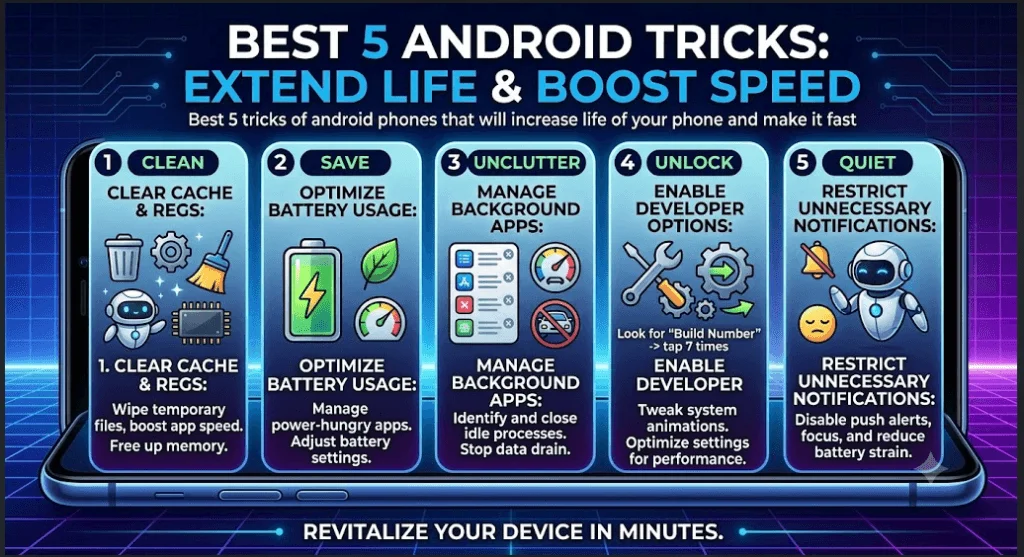
Looking for the best android phone tricks to revive a sluggish device? Is your phone running slow or dying before the day even ends? You do not need to buy a brand-new device or be a tech wizard to fix these frustrating issues. Over time, all smartphones gather system clutter, hidden background processes, and bad battery habits that drag down overall performance.
Thankfully, applying a few clever android phone tricks can immediately transform your user experience. By optimizing key settings, clearing bottlenecks, and tweaking hidden features, you can make your device feel brand new again. Here are the 5 simple, proven android phone tricks to boost your phone’s speed and extend its battery life for years to come.
Also Read: Decoding AI’s Power Demand: How Much Energy Do Data Centers and Artificial Intelligence Really Use?
1. Ditch “Task Killers” & Clear Actual Storage Space
Many users believe that constantly swiping away recent apps makes their phone faster. However, Android is designed to keep recent applications cached in RAM (Random Access Memory) for quick access. Reopening an app completely from scratch actually uses more processing power and drains your battery faster than opening a paused application.
Instead of closing apps, focus on clearing your actual internal file storage. When your internal storage hits 80% to 90% capacity, your phone slows down to a crawl because the operating system loses the free space it needs to manage temporary files and system operations.
What to do: Open Settings > Storage. Use the built-in storage cleaner to remove old downloads, duplicate photos, large media files, and unused apps. Aim to keep at least 15% to 20% of your total storage free at all times to maintain peak operational speeds.
Also Read: Report Highlights Cybersecurity Risks Linked to AI-Generated Code
2. Cap Your Battery Charge at 80%
Lithium-ion batteries are chemically sensitive to extreme states. Regularly charging your phone all the way to 100% or letting it drain down to 0% causes rapid chemical degradation over time.
| Battery Level Strategy | Impact on Long-Term Longevity |
| 0% to 100% (Full cycles) | Wears out battery health in roughly 2 years |
| 20% to 80% (Optimal zone) | Keeps battery healthy and efficient for 4+ years |
What to do: Go to Settings > Battery. Look for built-in protection features like “Protect Battery,” “Adaptive Charging,” or “Optimized Charging” and toggle the setting on. This intelligent feature caps daily charging at 80% to 85%, preventing cell degradation while you sleep and significantly extending the overall lifespan of your phone.
3. Enable Dark Mode and Adaptive Brightness
Your device screen is consistently the single biggest power consumer on your phone. If your smartphone features an OLED or AMOLED display, black pixels literally turn off completely, which saves a massive amount of power compared to displaying bright white backgrounds.
Also Read: Why Forward Deployed Engineer is the Hottest Role in Tech?
What to do:
Navigate to Settings > Display and turn on Dark Theme (or Dark Mode).
Turn on Adaptive Brightness (or Auto-Brightness) so your screen automatically lowers its intensity indoors rather than running at maximum output unnecessarily.
Also Read: Meta Taught Reels, Google Built Utility: Who Wins the AI Race?
4. Restrict Hidden Background App Activity
Popular applications—especially social media platforms, shopping tools, and news aggregators—love running silently in the background. They fetch real-time updates, track your GPS location, and send push notifications, all of which drain your battery and hog processing power even when your phone is locked.
What to do:
Open Settings > Battery > Battery Usage.
Identify which apps are consuming high percentages of power in the background.
Tap on those resource-heavy apps and change their background permissions to “Restricted” or enable Adaptive Battery to limit their access automatically.
5. Enable Developer Options to Speed Up Animations
This favorite among advanced android phone tricks will not change your phone’s physical processor, but it will instantly make scrolling, switching screens, and opening menus feel twice as fast.
Navigate to Settings > About Phone.
Scroll down to find “Build Number” and tap it 7 times consecutively until a popup message appears stating, “You are now a developer!”
Return to Settings > System > Developer Options.
Scroll down until you locate these three distinct animation settings:
Window animation scale
Transition animation scale
Animator duration scale
Change all three values from 1x to 0.5x (or turn them off entirely).
The Result: Your phone will stop playing slow, flashy transition effects when opening apps, allowing your menus and interfaces to snap open almost instantaneously!
Final Thoughts
Implementing these effective android phone tricks takes less than five minutes of your time, but the long-term performance payoff is massive. By managing storage efficiently, adopting healthy battery charging habits, restricting hungry background apps, and snapping up animation speeds, you can enjoy a device that feels snappy, stays cool, and lasts for years without needing an expensive repair or upgrade.
Your smartphone is an essential daily tool—with just a small amount of routine maintenance, you can keep it running like new every single day!




Your first comment on any article never needs an account. If an author replies and you want to keep the conversation going, a free account keeps things trustworthy. Log in or sign up.